Quick Start
xDrip+ for CareSens Air (Android)
xDrip+ is the CareSens integration Healthings uses on Android. Download it here and connect once: CareSens Air → xDrip+ → Health Connect → Healthings.
Clinical terms like kcal, BMR, CGM, and brands like Withings stay in English.
Android only. There is no xDrip+ on iPhone — there, CareSens Air shares straight to Apple Health. See CGM glucose.
CareSens Air keeps the readings inside its own app. xDrip+ is the CareSens integration on Android — it lines CareSens up with Healthings. You connect once, and after that glucose lands on your dashboard by itself.
xDrip+ is in English on every phone, so the labels below are quoted exactly as you will see them.

About 16 MB. The CareSens integration Healthings uses on Android — this build, source on GitHub.
1. Install xDrip+
- Tap the button above on the phone itself. Your browser will warn you about an APK — that is normal outside the Play Store.
- Open the downloaded file. If Android refuses, allow Install unknown apps for your browser, then open it again.
- Open xDrip+ once. You can skip its sensor wizard — CareSens Air will do the feeding.
2. Let CareSens Air talk to xDrip+
- In the CareSens Air app, open Manage Data & Connections.
- Switch xDrip+ on.
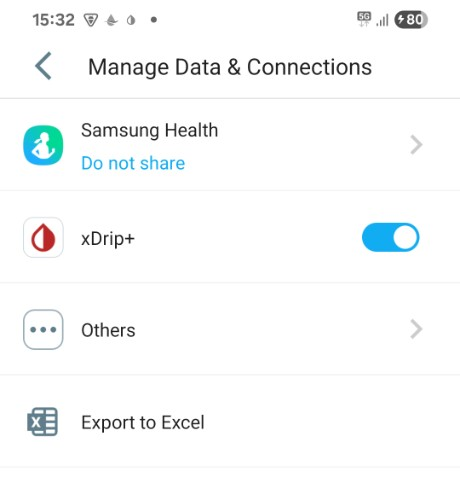
Leave CareSens Air installed and running. It stays the app that talks to your sensor; xDrip+ only listens.
3. Point xDrip+ at the companion app
In xDrip+, open Settings → Hardware Data Source and choose Companion App (older builds call it 640G / Eversense). Within a few minutes a glucose number should appear on the xDrip+ home screen.
4. Send the readings to Health Connect
- xDrip+ → Settings → Inter-app settings.
- Scroll to the bottom → Google Health Connect.
- Use Health Connect ON, Send data to Health Connect ON, Get data from Health Connect OFF.
- Tap Manage permissions and let xDrip+ write Blood Glucose.
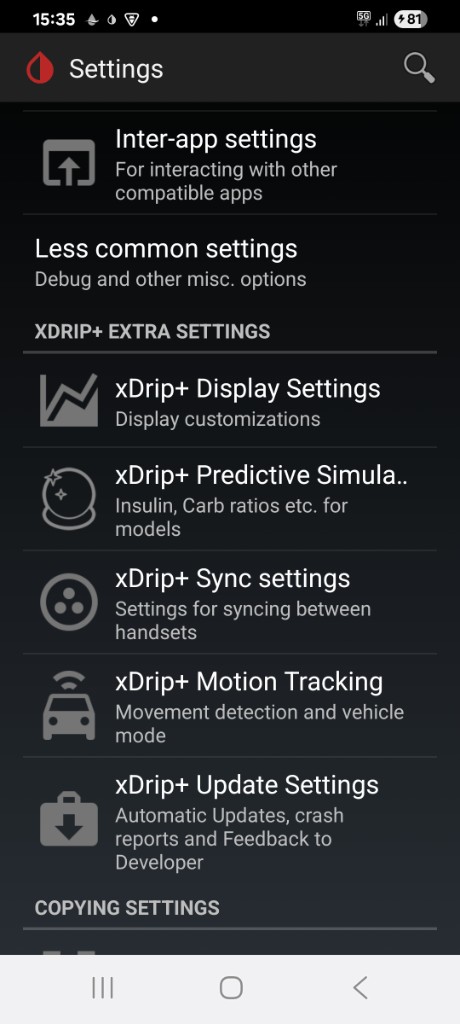
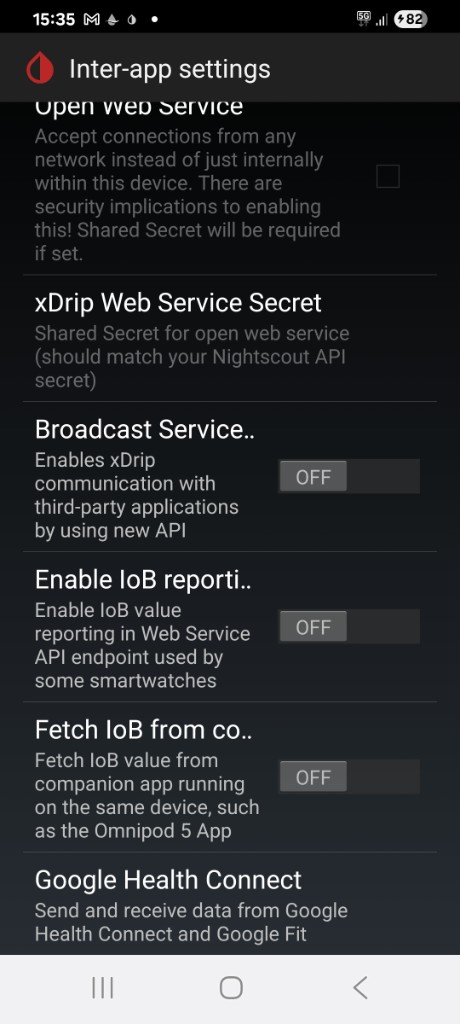
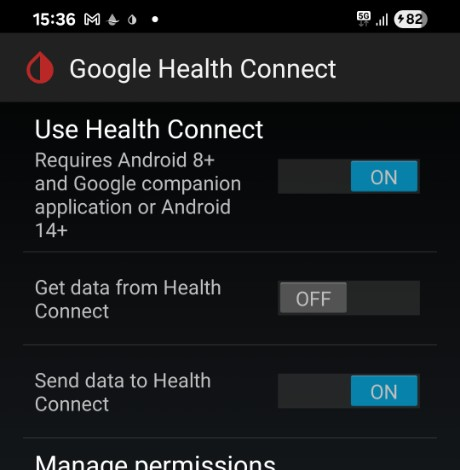
Leave Get data from Health Connect off. xDrip+ only needs to write here, and with reading on, some phones nag you every few minutes.
5. Let Healthings read the glucose
- In Healthings: Profile & Settings → GEAR → CGM = Yes.
- Allow Blood Glucose when the phone asks (Allow access).
- Tap the refresh icon in the header. The chart strip turns into GLUCOSE and fills as readings arrive.
Already been wearing the sensor for a while? GEAR → Import loads CareSens CSV history, so the earlier days are not empty.
Nothing shows up?
- Give it about 15 minutes — a reading travels three apps. A fresh sensor is also in warm-up for its first hours.
- Check that CareSens Air is still installed and the xDrip+ switch is still on.
- Phone Settings → Health Connect → App permissions: xDrip+ may write Blood Glucose, Healthings may read it.
- Battery saver: let xDrip+ and Healthings run in the background. Android stops the quiet apps first.